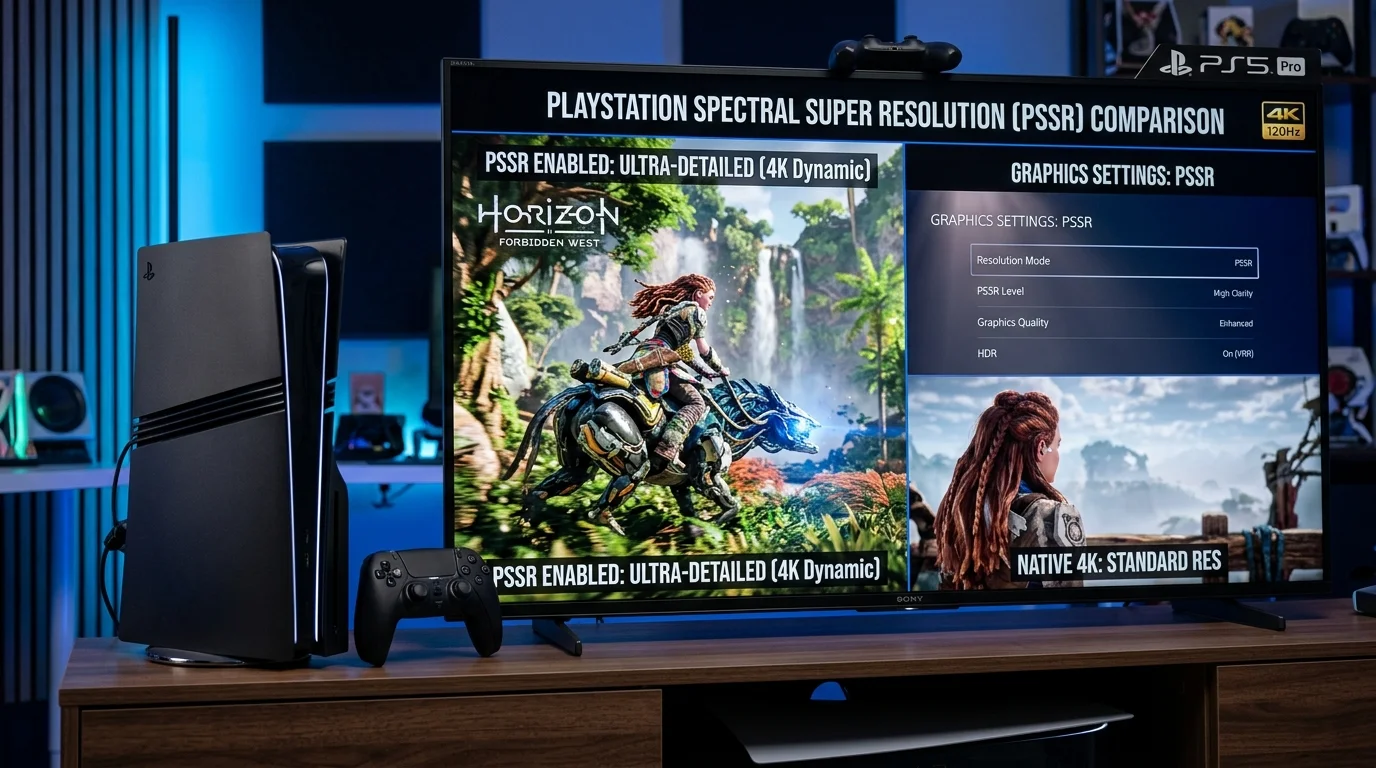
What PSSR Does (And Why Calibration Matters)
Sony's PlayStation Spectral Super Resolution (PSSR) represents the most significant architectural evolution of the PS5 generation. Unlike standard software-based upscalers like AMD FSR 2 or bilinear spatial filters, PSSR utilizes dedicated machine learning tensor hardware baked into the PS5 Pro's customized RDNA-derived GPU.
The neural model is pre-trained on millions of high-resolution gaming frames. It receives raw geometry buffers, motion vectors, and jittered color data at lower base resolutions (typically 1080p to 1440p), and reconstructs a high-fidelity 4K output. In testing, the visual outcome surpasses traditional temporal upscaling: edge ringing is minimized, text is clean, and specular highlights maintain stability during rapid camera movements.
However, because PSSR relies heavily on motion vectors and temporal history, improper display post-processing or mismatched console settings can produce distracting artifacts—most notably ghosting halos, trailing behind character models, or smearing on OLED panels.
Recommended System-Level Settings for PS5 Pro
Before launching a game, verify that your console's video pipeline is feeding your television an uncompressed, low-latency signal. Open Settings > Screen and Video > Video Output on your PS5 Pro and apply the baseline calibration below:
| PS5 Pro Setting | Recommended Value | Why It Matters for PSSR |
|---|---|---|
| Resolution | 2160p (Automatic) | Ensures PSSR reconstruction targets full 3840×2160 canvas rather than downsampling to 1440p. |
| 120Hz Output | Automatic | Unlocks 40 FPS balanced modes and high-framerate 80–120 FPS PSSR performance modes. |
| VRR (Variable Refresh Rate) | Automatic | Smooths out momentary frame drops when neural upscaling encounters heavy particle load. |
| Apply VRR to Unsupported Games | On | Stabilizes frame pacing in legacy titles running with PS5 Pro Game Boost. |
| ALLM (Auto Low Latency Mode) | Automatic | Forces the display into pure Game Mode, disabling laggy TV image processing circuits. |
| RGB Range | Automatic | Prevents black crush or washed-out contrast that degrades PSSR fine edge contrast. |
How to Fix PSSR Shimmering, Ghosting & Motion Blur
Several early players reported that certain titles exhibited distracting foliage shimmering or smearing around high-contrast edges when moving the camera. Through hands-on troubleshooting across multiple display panels, we isolated the root causes and their definitive fixes:
Fix 1: Disable TV Motion Interpolation (TruMotion / Motionflow)
Many smart TVs keep motion smoothing active even when recognizing an HDMI 2.1 input. Because PSSR reconstructs frames using temporal sub-pixel data, external frame interpolation creates algorithmic conflict, resulting in severe ghosting around character silhouettes. Ensure TruMotion (LG), Motionflow (Sony), or Picture Clarity (Samsung) is set to Off or pure Game Mode.
Fix 2: Reset In-Game Sharpness to Neutral (0–10%)
Games patched with early PSSR SDKs occasionally apply an aggressive post-upscaling sharpening pass. When paired with high television sharpness, this produces intense halo ringing and shimmering on foliage and fences. In games like Alan Wake 2 and Final Fantasy VII Rebirth, dial the in-game sharpness slider down to neutral (0 to 10%) for a clean, filmic presentation.
Fix 3: Favor Performance Pro over 30 FPS Fidelity Modes
PSSR requires temporal samples across sequential frames to resolve high frequencies. At 30 FPS, the temporal gap between frames is 33.3ms, making motion blur and sample disocclusion significantly more noticeable to the human eye. At 60 FPS (16.6ms frame time) or 120Hz VRR, PSSR has twice as many temporal samples per second, virtually eliminating reconstruction trailing.
Game-by-Game PSSR Optimization Guide
Developers implement PSSR differently based on their rendering engine and art style. Here is how leading titles perform on PS5 Pro and the recommended mode to select:
| Game Title | PS5 Pro Enhancements | Recommended Preset | Target Result |
|---|---|---|---|
| Marvel's Spider-Man 2 | PSSR upscaling, ray-traced reflections & ambient occlusion at 60 FPS. | Performance Pro (VRR On) | Near-Fidelity 4K clarity at a rock-solid 60–80 FPS in dense Manhattan web-swinging. |
| Final Fantasy VII Rebirth | Replaces blurry base PS5 bicubic upscaler with neural PSSR reconstruction. | Versatility / Pro Mode | Completely eliminates base game's notorious blur; character hair and open-world foliage crisp at 60 FPS. |
| Alan Wake 2 | Adds hardware-accelerated ray tracing in Quality Pro; PSSR 60 FPS in Performance Pro. | Performance Pro | Fluid 60 FPS combat with sharp texturing; avoid 30 FPS Quality unless prioritizing mirror reflections. |
| Horizon Forbidden West | Combines Decima Engine checkerboard with PSSR machine learning pass. | Pro Performance (60 FPS) | Reference-grade foliage clarity, sparkling water detail, and instant DualSense trigger responsiveness. |
| Doom: The Dark Ages | Id Tech engine updated with dedicated PSSR reconstruction pipeline. | High Frame Rate Pro (120Hz) | Ultra-fast twitch shooter response with clean particle effects and zero edge shimmering. |
Step-by-Step Display Calibration Checklist
To ensure you are experiencing PSSR at its peak visual clarity without input lag or clipping, complete this 5-point calibration checklist:
- Use the Included Ultra High Speed HDMI Cable: Only HDMI 2.1 certified cables can pass uncompressed 4K 120Hz with 10-bit HDR and VRR. Older HDMI 2.0 cables force chroma subsampling to 4:2:0, introducing color fringing on reconstructed text.
- Connect to the Designated HDMI 2.1 Port: Many 4K TVs only provide full 48Gbps bandwidth on Port 3 and Port 4 (often labeled 4K@120Hz / eARC).
- Run PS5 System HDR Calibration: On the PS5 dashboard, run Adjust HDR. Set screens 1 and 2 until the symbol is barely invisible at the click point, and set screen 3 (black level) to the absolute lowest setting. Check our PS5 TV & HDR Settings Guide for full tone-mapping details.
- Set Sharpness to Neutral: On your TV picture menu, reduce Sharpness to 0 (or 10 on Sony displays where 10 is neutral). Sharpness circuits artificially boost edges that PSSR has already accurately calculated.
- Confirm VRR Status in Game: Press the PlayStation button on your controller, check the Quick Menu display information, and verify that VRR is labeled as Active (48Hz–120Hz).
Frequently Asked Questions About PS5 Pro PSSR
How do I turn on PSSR on PS5 Pro?
PSSR is enabled automatically by the console firmware whenever you play a PS5 Pro Enhanced title on a 4K display. To ensure it is active, open the game's display settings and select a "Pro" mode (such as Performance Pro or Fidelity Pro).
Why does PSSR look blurry in some scenes?
Blurry presentations usually stem from television post-processing filters (such as motion smoothing or noise reduction) or games with dynamic resolution scaling dropping beneath the machine learning model's ideal input range. Disabling TV motion enhancement and switching to a 60 FPS Performance Pro mode eliminates the issue.
Does PSSR work on unpatched PS5 games?
No. PSSR requires a developer patch compiled with the PS5 Pro SDK. However, unpatched games still benefit from PS5 Pro Game Boost, which stabilizes dynamic resolutions and eliminates frame rate dips without neural reconstruction.
Is PSSR better than NVIDIA DLSS or AMD FSR?
PSSR is closer to NVIDIA DLSS in architecture because both rely on dedicated hardware tensor cores for neural temporal reconstruction. While DLSS on high-end PC GPUs has a larger model footprint, PSSR significantly outperforms AMD FSR 2/3 in edge clarity, temporal stability, and ghosting reduction on console hardware.
Kevin Anderson
Hardware Specialist & Console Performance Editor
Kevin conducts independent hands-on testing across PlayStation hardware revisions, display standards, and audio accessories. All calibration guides are built on verified physical testing on retail consoles.
Explore Related PS5 Guides
PS5 Pro PSSR Explained
Deep dive into image reconstruction technology and hardware architecture.
DualSense vs DualSense Edge
Complete controller breakdown: ergonomics, back paddles, and battery life.
PS5 TV & HDR Setup Guide
Master your display settings for optimal HDR tone mapping and black levels.
Interactive Setup Planner
Answer four quick questions for a personalized hardware and display roadmap.