Storage expansion guide
PS5 SSD Storage Guide
This storage guide explains when PS5 owners should consider M.2 expansion and why official fit, size, and heatsink guidance must be checked before buying.
Evidence basis: PlayStation’s current M.2 SSD specifications and installation support. No individual SSD model is endorsed or represented as hands-on tested.
When Storage Becomes the Bottleneck
Storage becomes a real PS5 problem when the console starts changing how you play. If you avoid downloading games, delete titles you still want installed, or delay updates because space is tight, an M.2 SSD can be a meaningful upgrade. The value is not abstract capacity. The value is having more of your library ready without constantly managing installs.
Players with disc games can still run into storage pressure because game data and updates take space. Digital-only players often feel it sooner. Large live-service games, sports titles, shooters, and big open-world games can fill internal storage quickly. If multiple people share the console, storage pressure grows because each person may have different installed favorites.
Exact PS5 M.2 SSD Requirements
PlayStation currently specifies a PCI-Express Gen4x4 M.2 NVMe SSD using Socket 3 (Key M), with 250 GB to 8 TB capacity. Supported form factors are 2230, 2242, 2260, 2280, and 22110. M.2 SATA drives are not supported. A sequential read speed of 5,500 MB/s or faster is recommended rather than guaranteed as the only measure of compatibility.
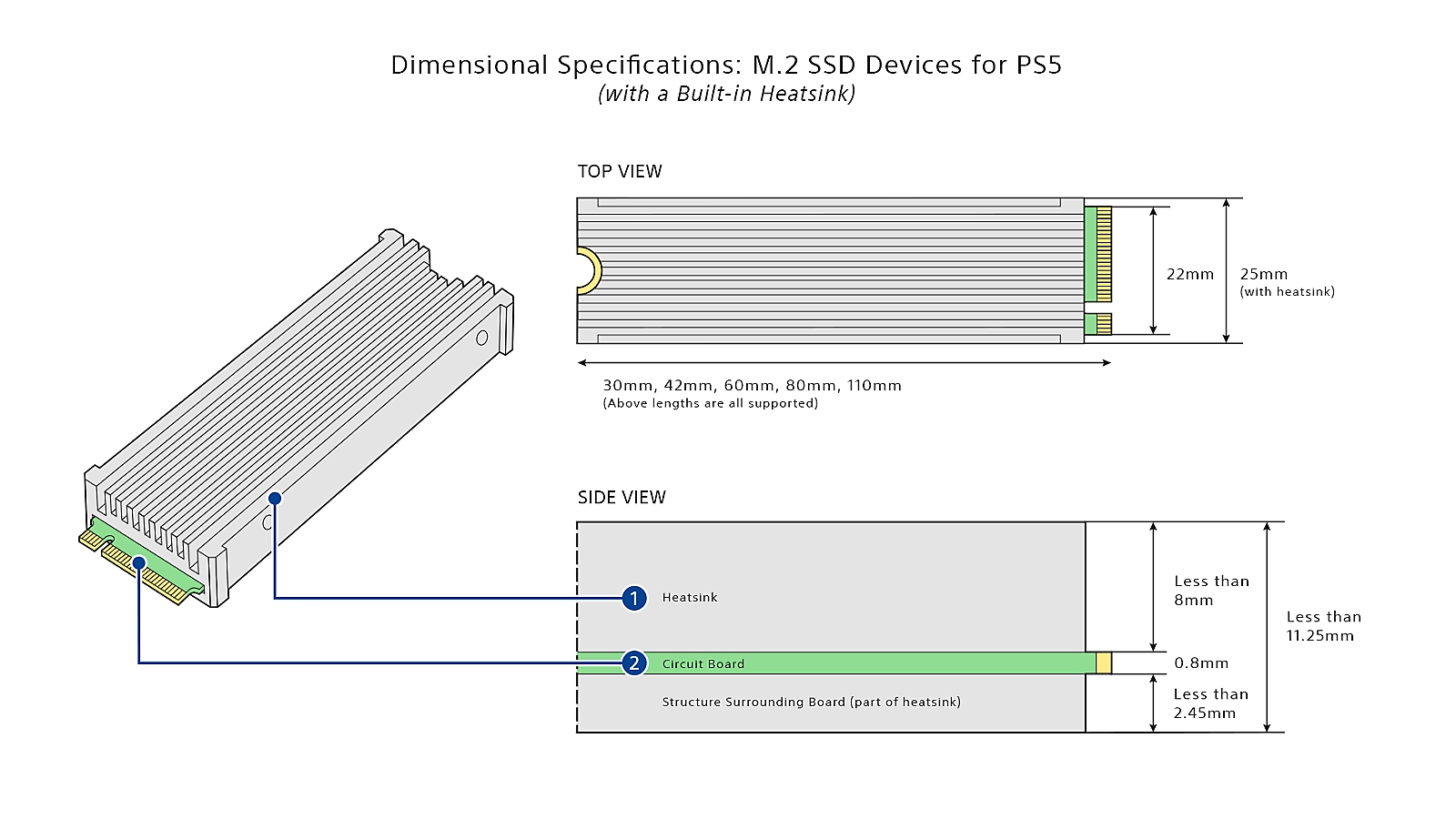
The drive and cooling structure together can be up to 25 mm wide and 11.25 mm thick, with no more than 8.0 mm above the board and 2.45 mm below it. Supported lengths are 30, 42, 60, 80, and 110 mm. Effective heat dissipation is required, using a built-in heatsink or a correctly fitted heatsink and heat-transfer sheet. Do not stack another heatsink onto a drive that already has one.
Meeting the published numbers does not make every third-party drive guaranteed by Sony. Confirm the exact model and heatsink dimensions with the manufacturer, keep PS5 system software current, and use the official installation instructions for your console model.
How Much Capacity Should You Choose?
Capacity depends on library habits. A casual player may only need enough room for a few large games. A player who rotates between multiplayer titles, single-player campaigns, sports games, and family games may need more. The right size is the point where you stop micromanaging installs every week. Buying more storage than you need can waste money, but buying too little can recreate the same problem quickly.
Think in terms of installed games rather than raw numbers. Which games must stay installed? Which games can be deleted after completion? Which games do multiple household members use? Which games receive frequent updates? Those answers make capacity planning more accurate than chasing the largest drive available.
Installation Confidence
Prepare a well-lit table, a #1 Phillips or cross-head screwdriver, and a protective surface. Fully turn off and unplug the console, allow it to cool, and discharge static electricity by touching a grounded metal object. The cover-removal procedure differs between console model groups, so identify the model before following a diagram.
The spacer must sit in the groove matching the drive length. Insert the M.2 drive fully at an upward angle, lower it onto the spacer, secure it without forcing the board, reinstall the expansion-slot cover, and then replace the console cover. If the slot cover will not close, the cooling structure may exceed the allowed size.
The console prompts to format a newly installed drive. Formatting erases existing data on that drive, and the process should not be interrupted. If you are uncomfortable with these steps, use PlayStation's official instructions while working or ask an experienced technician for help.
Storage Strategy After Installation
After expansion, storage still benefits from organization. Keep frequently played games installed. Archive completed games if you do not plan to return soon. Watch update sizes for live-service games. Decide whether new downloads should go to internal storage or the M.2 drive based on console settings and preference. Expansion reduces pressure, but it does not remove the need for a basic library strategy.
The best storage upgrade disappears into the background. You stop thinking about free space every session, and the console feels easier to live with. That is the real win: fewer interruptions, more installed choices, and less time spent deciding what to delete.
Related PS5 Accessory Guides
PS5 SSD Storage Guide FAQ
Does PS5 support M.2 SSD expansion?
Yes, PS5 supports compatible M.2 SSD expansion, but you must follow PlayStation official requirements for size, fit, heatsink, and installation.
Do PS5 SSDs need a heatsink?
Yes. PlayStation requires effective heat dissipation using a built-in heatsink or a correctly sized cooling structure. The complete assembly must stay within the published dimensions.
How much PS5 storage should I buy?
Choose capacity based on how many large games you want installed at once. The right size is the one that stops frequent deletion and reinstall cycles.
Is installing a PS5 SSD hard?
Many users can install one by following official instructions carefully, but it still involves internal hardware. If you are unsure, get help from someone experienced.
Can I use any fast M.2 SSD?
No. It must be a supported PCIe Gen4x4 M.2 NVMe Key M drive, fit the published dimensions, use effective cooling, and meet the other official requirements. M.2 SATA is not supported.
Where should I verify PS5 SSD requirements?
Use PlayStation official support documentation for current M.2 SSD installation and compatibility requirements.