PS5 audio prep
GTA 6 PS5 Audio and Headset Guide
GTA 6 PS5 audio guide covering headset choices, 3D audio setup, TV sound, chat, late-night play, and official PlayStation links.
Research basis for GTA 6 PS5 Audio and Headset Guide: desk research using the primary sources linked on this page. This is not a hands-on review unless a test method is stated.
Official Sources to Check
The links below are the primary sources used for GTA 6 PS5 Audio and Headset Guide. Check the regional store or support page before a purchase because availability and account terms can differ.
Confirmed GTA 6 Audio Feature
The official PlayStation page states that GTA 6 uses Tempest 3D Audio for accurate positioning across Leonida’s soundscape. That confirms a PS5 spatial-audio implementation, but it does not make one headset model mandatory.
Test the output device you already own. Compare TV, soundbar, and headset playback at a safe volume; keep the option that makes dialogue, effects, and direction easiest to understand in your room.
Why Audio Deserves Its Own Prep
GTA 6 is likely to be experienced through city atmosphere as much as visuals. Traffic, radio, dialogue, weather, interiors, and environmental detail all depend on a sound setup that is not fighting the room. If your TV speakers are thin or your headset is uncomfortable, the game may feel less impressive than it should.
Audio prep does not require buying the most expensive headset. It starts with checking the output path you already use. Make sure the PS5 is sending sound to the right device, test chat balance, and confirm the headset or soundbar is not using a mode that crushes dialogue or adds delay.
Headset or TV Speakers
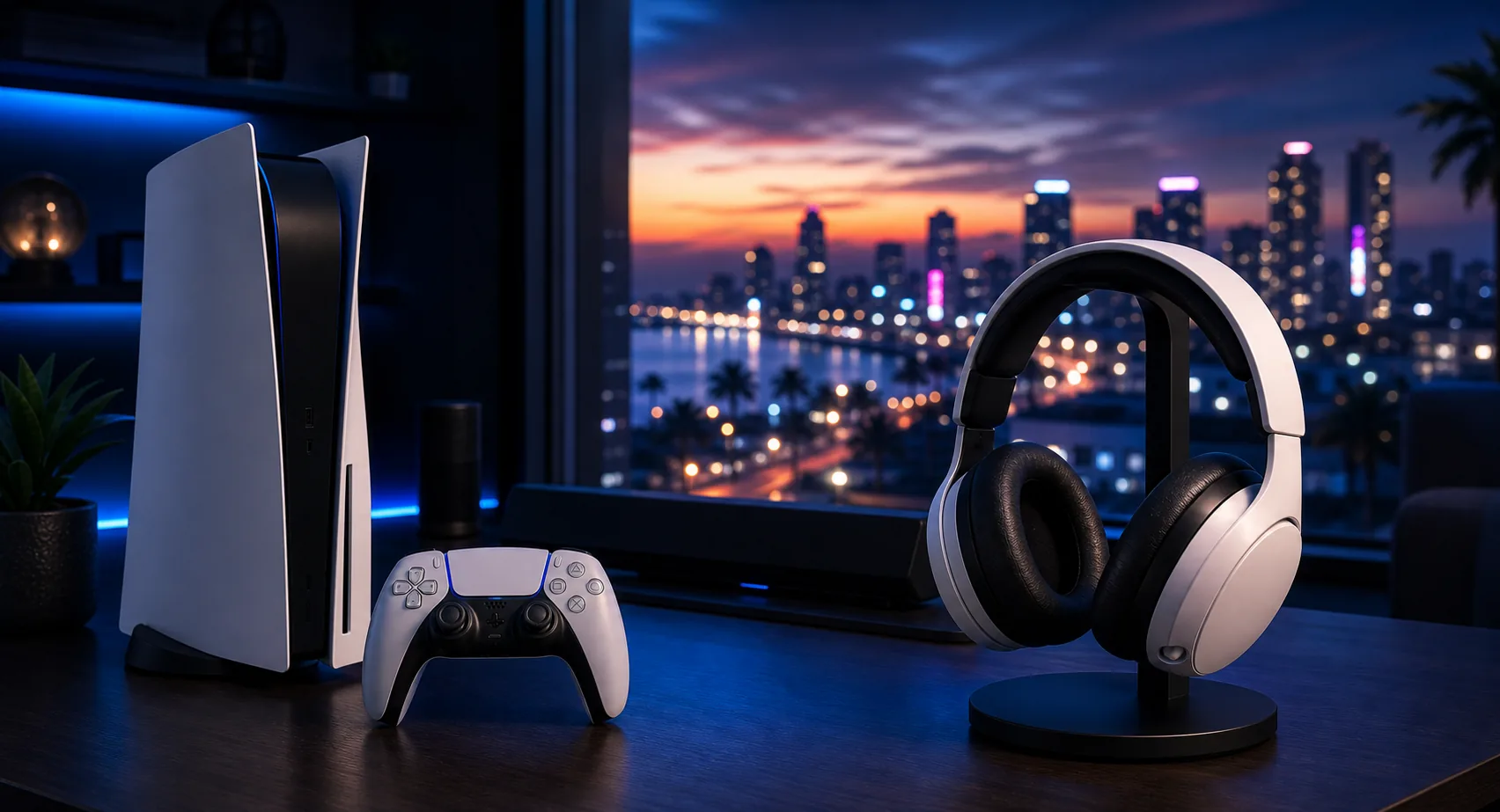
A headset is the better choice for private play, late-night sessions, voice chat, and hearing detail without filling the room. TV speakers or a soundbar can be better for a shared living-room experience. The right answer depends on where the PS5 sits and who else is nearby while you play.
If you already own a headset, wear it for a long session before launch and check comfort. Ear pressure, heat, and battery life matter. A headset that sounds good for twenty minutes may become annoying after three hours. Comfort is part of performance.
3D Audio Settings
PS5 includes 3D audio settings that can help headphone play feel more spatial. Before launch, review the console audio settings and choose the profile that sounds most natural to you. Do not assume the default is perfect for every ear shape or headset. Take a few minutes to test.
Spatial audio should improve location and atmosphere without making the mix harsh. If the sound feels hollow, overly bright, or confusing, adjust the profile or try a different output mode. The best setting is the one that helps you understand the game world comfortably.
Chat and Online Play
If you expect to play online modes, chat balance deserves early attention. A game can sound great until party chat overpowers dialogue or friends cannot hear you clearly. Test microphone input, sidetone if available, and chat/game balance. This is especially important for shared rooms where background noise can leak into the mic.
Mute habits matter too. Know where the mute control is on your controller or headset. Confirm whether your headset has a physical mute state. These small details make online play smoother and reduce friction when switching between solo exploration and friends.
Soundbar and TV Output
For TV-first setups, check HDMI and soundbar routing before launch. Make sure the TV is using the intended audio output and that game mode does not accidentally change audio behavior. If your soundbar supports different modes, choose one that preserves dialogue and avoids distracting delay.
Do not chase loudness alone. Open-world games need dynamic range, but they also need clear speech and balanced effects. If explosions or music overpower dialogue, adjust the TV or soundbar mode. A balanced setup is better than a louder one.
Buying Advice
If you need a new headset, start with compatibility and comfort. Official PlayStation headset pages explain console-focused features, while third-party products may offer other strengths. This site focuses on official resources and setup context, but the buying principle is universal: fit, battery, microphone clarity, and controls matter.
Use the PS5 Headset and Audio Guide for broader accessory context. For GTA 6 specifically, prioritize a setup you can wear or hear comfortably for long sessions, because launch excitement often turns into longer play than expected.
Audio Test Before Buying
- Select the correct PS5 output device.
- Run the PS5 3D Audio profile setup.
- Test dialogue, effects, and positional cues at a safe volume.
- Check microphone and chat balance only if you use voice chat.
- Replace hardware only after identifying a specific problem.
Related GTA 6 PS5 Guides
Use these connected guides to move from the main GTA 6 PS5 hub into the exact setup decision you need next.
GTA 6 PS5 Audio and Headset Guide FAQ
Do I need a headset for GTA 6 on PS5?
No, but a headset can improve private play, voice chat, and environmental detail.
Should I use 3D audio?
Try it and choose the profile that sounds most natural. It should improve space without making the mix uncomfortable.
Is a soundbar better than a headset?
A soundbar is better for shared rooms, while a headset is better for private and late-night play.
What should I test before launch?
Test output device, microphone, chat balance, headset comfort, and TV or soundbar mode.
Where can I check official headset details?
Use PlayStation’s official headset product pages and support resources.