Display setup guide
GTA 6 PS5 TV and HDR Settings Guide
GTA 6 PS5 TV and HDR guide covering 4K setup, HDR calibration, game mode, HDMI checks, soundbar routing, PS5 Pro considerations, and FAQs.
Research basis for GTA 6 PS5 TV and HDR Settings Guide: desk research using the primary sources linked on this page. This is not a hands-on review unless a test method is stated.
Official Sources to Check
The links below are the primary sources used for GTA 6 PS5 TV and HDR Settings Guide. Check the regional store or support page before a purchase because availability and account terms can differ.
Display Setup Is Part of the Game
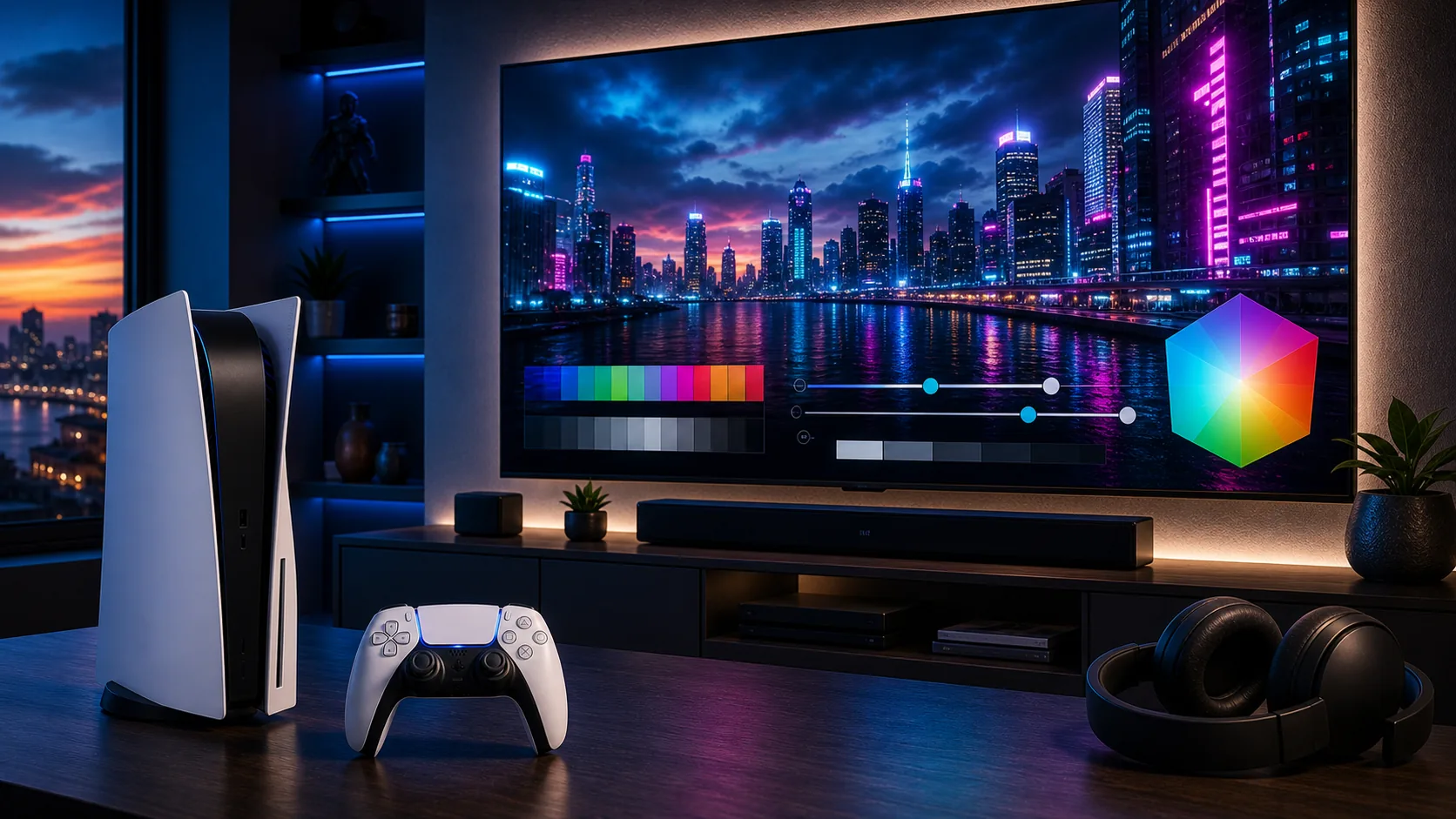
A visually rich open-world game can only look as good as the signal chain allows. The PS5, HDMI cable, TV port, picture mode, HDR calibration, and room lighting all shape what you see. Before thinking about a console upgrade, make sure the display setup you already own is working correctly.
Many players leave performance on the table because the console is plugged into the wrong HDMI port or the TV is using a picture mode built for movies instead of games. These are easy fixes. The point is not to obsess over settings; it is to remove obvious bottlenecks before launch.
HDMI and Game Mode
Check which HDMI port your TV recommends for gaming features. Some TVs only support their best gaming functions on specific ports. Make sure game mode is enabled so input lag stays low. If your TV has automatic game mode, confirm it actually activates when the PS5 is on.
Cable quality also matters, especially for high-resolution and high-refresh features. Use the cable that came with the console or a cable that meets the requirements of your setup. If the screen flickers, drops signal, or refuses certain modes, the cable and port are the first places to check.
HDR Calibration
HDR should make bright highlights and dark scenes feel more natural, not washed out or crushed. Run the PS5 HDR adjustment process and then test games you already know. If dark areas lose detail or bright areas look flat, revisit the TV’s HDR mode and the console calibration.
Room lighting matters too. A bright room can make dark scenes harder to read, while a dark room can make aggressive brightness uncomfortable. Choose settings for the room where you actually play. Do not copy someone else’s calibration numbers without understanding their TV.
PS5 Pro and Display Value
If you are considering PS5 Pro for GTA 6, the display becomes even more important. A premium console is easier to justify when paired with a strong 4K HDR screen. If the TV cannot show the difference clearly, the upgrade may be less satisfying than expected.
Read the GTA 6 PS5 Pro Guide before buying hardware. The strongest upgrade decision connects console, TV, game library, and budget. A display setup check should come before a console purchase, not after.
Audio Routing Through TV or Soundbar
Display setup often affects audio too. If a soundbar or receiver sits between the PS5 and TV, make sure audio routing is correct and game mode still behaves as expected. Some setups add delay or switch modes depending on which HDMI port is used.
Test dialogue, effects, and music in games you already own. If audio feels delayed, muffled, or too loud in effects-heavy moments, adjust TV and soundbar settings before launch. The GTA 6 PS5 Audio Guide covers sound decisions in more detail.
Simple Launch Setup Checklist
Before launch, confirm resolution output, HDR status, game mode, HDMI port, cable, and audio path. Then stop changing things unless something looks wrong. Constant tweaking can become its own distraction. A stable and comfortable setup is better than a menu full of changes you cannot remember.
After the game launches, use real gameplay to make small adjustments. Dark scenes, bright outdoor areas, nighttime driving, and interior lighting will reveal whether the setup needs refinement. Keep changes small and reversible.
Display Setup Baseline
- Use the TV input intended for full-bandwidth console use.
- Enable the display’s low-latency game mode.
- Run PS5 HDR calibration from your normal seating position.
- Disable unnecessary motion smoothing before judging responsiveness.
- Wait for GTA 6-specific display controls before copying fixed values.
Related GTA 6 PS5 Guides
Use these connected guides to move from the main GTA 6 PS5 hub into the exact setup decision you need next.
GTA 6 PS5 TV and HDR Settings Guide FAQ
Do I need a 4K TV for GTA 6 on PS5?
No, but a good 4K HDR TV can improve the visual experience if configured correctly.
Should game mode be enabled?
Yes. Game mode usually reduces input lag and is recommended for console play.
Should I recalibrate HDR before GTA 6?
Yes, especially if your TV settings have changed or HDR looks washed out or too dark.
Does PS5 Pro require a better TV?
It does not require one, but the upgrade is more meaningful when paired with a display that can show the benefits.
What should I check first if the image looks wrong?
Check HDMI port, cable, game mode, HDR calibration, and TV picture mode.