PS5 controller prep
GTA 6 DualSense Controller Guide
GTA 6 DualSense guide for PS5 controller setup, DualSense Edge decisions, charging readiness, comfort, profiles, and official links.
Research basis for GTA 6 DualSense Controller Guide: desk research using the primary sources linked on this page. This is not a hands-on review unless a test method is stated.
Official Sources to Check
The links below are the primary sources used for GTA 6 DualSense Controller Guide. Check the regional store or support page before a purchase because availability and account terms can differ.
Confirmed GTA 6 DualSense Features
PlayStation’s official page confirms haptic feedback that reacts to choices and environmental factors, dynamic resistance through the adaptive triggers, and selected effects through the controller’s integrated speaker. These are GTA 6-specific confirmations rather than assumptions based on other games.
The listing does not say that DualSense Edge unlocks exclusive GTA 6 content. Edge may add remapping, back buttons, profiles, and trigger adjustments for the player, but the standard DualSense remains the complete default controller for the confirmed PS5 features.
Start with the Controller You Already Own
The standard DualSense Wireless Controller is the practical default for GTA 6 on PS5. It is the controller most players already understand, and it supports the PS5 features developers commonly build around. Before thinking about upgrades, make sure your current controller is updated, charged, clean, and comfortable for long sessions.
A launch weekend can expose small controller problems. Sticky buttons, drifting sticks, weak battery life, or a damaged USB cable are easier to fix before release than during a long session. Test the controller in games you already own, confirm vibration and triggers feel normal, and keep a second charging cable nearby.
When DualSense Edge Makes Sense
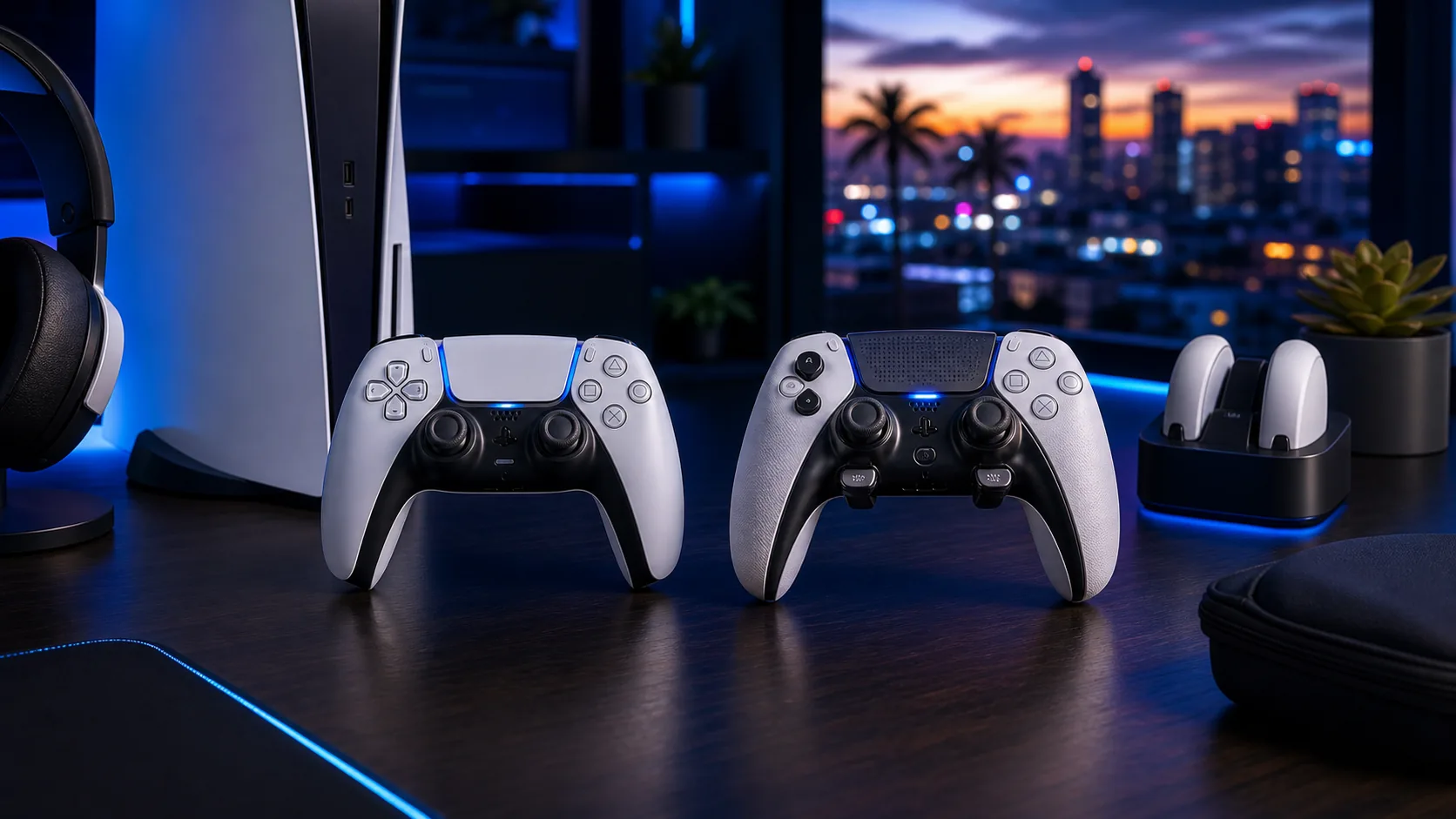
DualSense Edge is not required for GTA 6, but it can be valuable for players who love control customization. Back buttons, remapping, profiles, adjustable trigger stops, and replaceable stick modules can help if you regularly tune controls for driving, shooting, flying, and movement. The value comes from actually using those features.
If you rarely change settings, the premium controller may be more than you need. Spend the difference on storage, audio, or the game edition that fits you. If you already know you like profiles and back buttons, read the DualSense Edge guide before buying.
Charging Readiness
Battery readiness is a bigger deal than many players admit. Long open-world sessions can drain a controller at the worst time. A charging station or second controller can solve that friction. The best charging plan is the one you follow automatically after every session.
If the PS5 is shared, charging discipline matters even more. One person leaving a controller dead affects the next player. Use a consistent dock location, label controllers if necessary, and decide whether the household needs a second DualSense. The charging station guide covers the everyday setup.
Comfort and Accessibility
GTA 6 will likely involve long stretches of driving, exploring, aiming, menu use, and walking around dense spaces. Comfort matters. Adjust sensitivity, vibration, trigger effect intensity, and button layout in a way that reduces hand fatigue. Accessibility settings should be treated as normal setup tools, not last resorts.
Players with smaller hands, wrist discomfort, or repeated strain should test settings before launch. Reduce trigger resistance if it becomes tiring. Try lower vibration if it distracts you. A comfortable controller setup helps you stay immersed without fighting the hardware.
Profiles for Different Activities
A game with many activity types can benefit from different control habits. Driving may feel better with one sensitivity setup, while on-foot aiming may need another. DualSense Edge users can prepare profiles around activity types, but standard DualSense users can still review in-game settings once available.
Do not over-engineer profiles before the game is in your hands. Use launch week to learn how the controls actually feel. Then refine. The goal is to remove friction, not create a complicated setup ritual before every session.
Controller Purchase Checklist
Before buying a new controller, check what problem you are solving. Need multiplayer or backup battery? A second standard DualSense may be best. Need advanced control profiles? DualSense Edge may make sense. Need dead-controller prevention? A charging station could be the most useful purchase.
Use official PlayStation pages for current colors, package details, compatibility notes, and support information. This guide provides setup context, but PlayStation’s pages should be the final source for official controller specifications.
Controller Readiness Check
- Install controller firmware updates.
- Test current battery life during a normal session.
- Confirm haptics, trigger effects, speaker, and microphone preferences.
- Clean and test sticks, buttons, and USB-C charging.
- Buy Edge only for customization features you already use.
Related GTA 6 PS5 Guides
Use these connected guides to move from the main GTA 6 PS5 hub into the exact setup decision you need next.
GTA 6 DualSense Controller Guide FAQ
Is DualSense enough for GTA 6?
Yes. The standard DualSense Wireless Controller is the best default for most PS5 players.
Is DualSense Edge worth it for GTA 6?
It is worth considering if you use remapping, back buttons, profiles, or trigger adjustments regularly.
Should I buy a second controller?
A second controller helps shared consoles, local multiplayer, and backup charging.
How should I prepare my controller before launch?
Update it, test battery life, clean buttons and sticks, and set a consistent charging habit.
Where should I check official controller details?
Use the official PlayStation DualSense and DualSense Edge product pages.