PS5 storage prep
GTA 6 PS5 Storage and Preload Guide
GTA 6 PS5 storage guide covering preload readiness, free space, M.2 SSD planning, install cleanup, household libraries, and official checks.
Research basis for GTA 6 PS5 Storage and Preload Guide: desk research using the primary sources linked on this page. This is not a hands-on review unless a test method is stated.
Official Sources to Check
The links below are the primary sources used for GTA 6 PS5 Storage and Preload Guide. Check the regional store or support page before a purchase because availability and account terms can differ.
What Is Confirmed About Preloading
Take-Two announced that digital preloading begins November 12, 2026. The same announcement says the physical version will be available that day with a download code inside the box. Both routes therefore require a substantial download and adequate console or M.2 storage.
The announcement does not state a final file size. Leave additional headroom for updates and saved media, then use the size shown by the PlayStation Store when preload opens as the current account-specific figure.
Why Storage Planning Comes First
A major open-world launch can make PS5 storage feel smaller than it did last month. The exact GTA 6 install size should be verified only when official preload or store details are available. Until then, storage planning is still useful because it is based on habits. If you already delete games every week, a large new release will make that pressure worse.
Start by checking what is installed and who uses the console. Sports games, shooters, live-service titles, racing games, and other open-world games can all take serious space. A shared PS5 often has more storage pressure than a solo console because each user wants different favorites installed. Plan for the household, not only for one game.
Clean the Library Before Buying Hardware
The cheapest storage upgrade is deleting what you no longer use. Sort the library by size, remove completed games, uninstall trials, and clear old captures if video clips are taking space. Also review add-ons or language packs if the console shows them separately. This can free meaningful space without buying anything.
Be careful with save data. Deleting a game install is not the same as deleting save files, but users should still read prompts before confirming. If PlayStation Plus cloud saves or USB backups matter to you, check those settings early. Launch week is the wrong time to learn how your household handles saved data.
M.2 SSD Planning
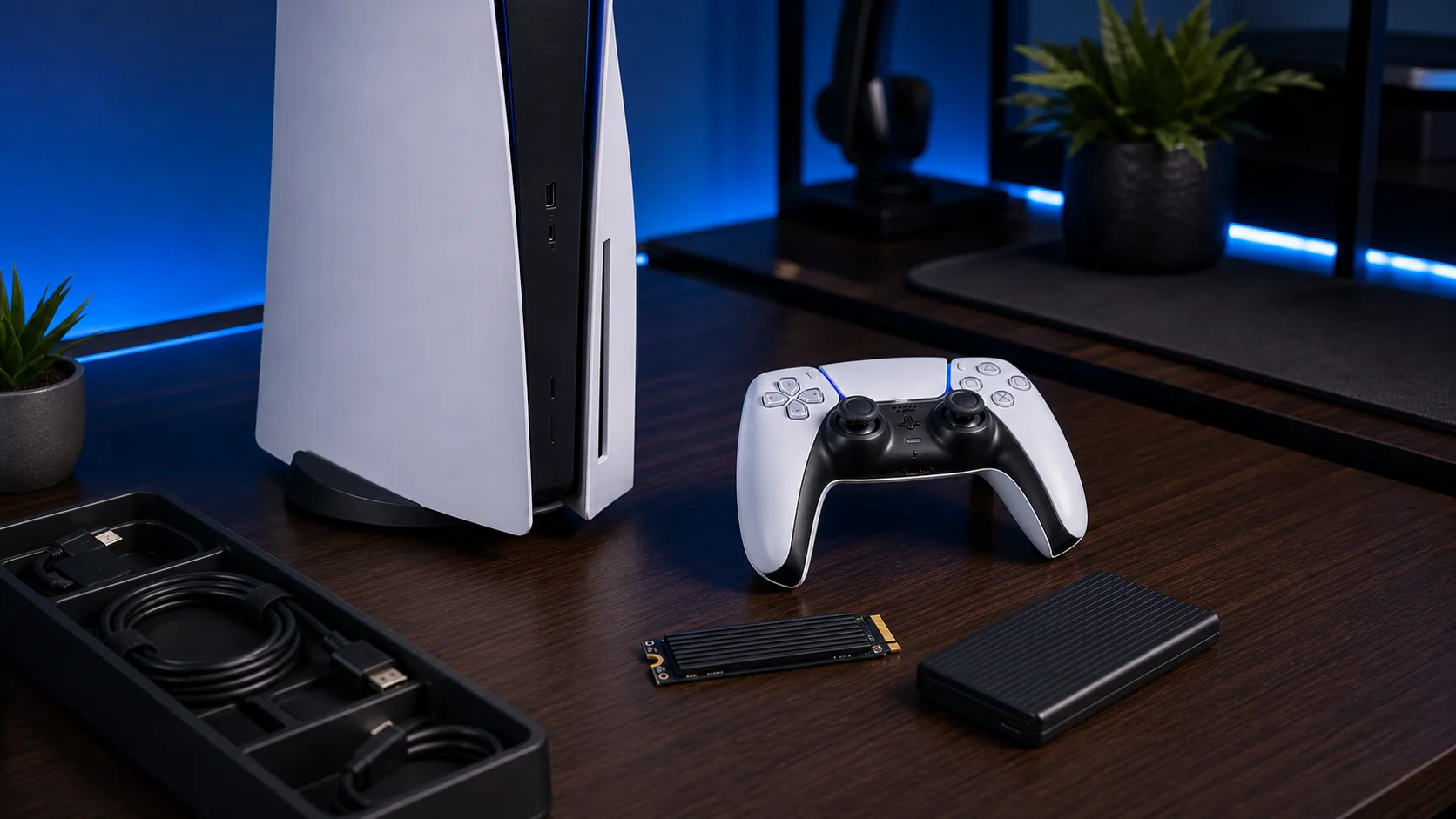
An M.2 SSD can be a strong upgrade for GTA 6 season because it lets you keep more large games installed. The important word is compatible. PlayStation’s official support page explains size, form factor, heatsink, installation, and formatting requirements. Do not buy from speed numbers alone. A drive must physically fit and meet PS5 expectations.
If you are nervous about installation, read the official support page before the drive arrives. Prepare a clean workspace, understand the cover removal steps, and check the screw position. A storage upgrade should make the console easier to live with, not create a rushed hardware project the night before release.
Preload Readiness
If preload becomes available in your region, the best preparation is simple: current system software, stable internet, enough free space, and the correct account signed in. Also check rest mode settings if you expect downloads to continue while the console is not active. These small settings can decide whether the game is ready on time.
Do not assume preload timing from another region applies to you. Store timing can vary. The official PlayStation page and your console store listing should be treated as final for your account. If a countdown appears in the store, use that instead of screenshots from other users.
Disc Players Still Need Space
A physical copy does not remove install planning. Modern console games still install data and receive updates. Disc buyers should leave storage space just like digital buyers. The difference is delivery and disc access, not freedom from installation requirements.
If you are buying physical, also consider patch timing. You may have the disc but still need a large update before the best launch experience. Keep the console connected, keep room available, and do not fill the drive with other downloads in the days before release.
After Launch: Keep Storage Healthy
Storage planning continues after release. GTA 6 may receive patches, content updates, and captures from your own gameplay. If you record clips often, capture storage can grow quietly. Review saved videos and screenshots every few weeks so the console does not fill again.
A good storage setup should disappear into the background. The goal is not to collect drives. The goal is to stop thinking about what must be deleted whenever a major update arrives. Build enough headroom for the games your household actually plays.
Storage Preparation Without Guessing
- Check free space before November 12.
- Delete finished games, old betas, and unnecessary captures first.
- Record the official store download size when preload opens.
- Verify every M.2 requirement on PlayStation Support before buying.
- Keep extra headroom for launch and post-launch updates.
Related GTA 6 PS5 Guides
Use these connected guides to move from the main GTA 6 PS5 hub into the exact setup decision you need next.
GTA 6 PS5 Storage and Preload Guide FAQ
Is the GTA 6 PS5 file size confirmed?
No final size is stated in the official sources cited here. Use the PlayStation Store download screen when preload opens.
Should I buy an M.2 SSD for GTA 6?
Buy one if your PS5 library is already crowded and you want multiple large games installed at once.
When can I preload GTA 6 on PS5?
Take-Two announced November 12, 2026 for digital preloading, ahead of the November 19 launch.
Do disc copies need storage space?
Yes. Disc games still install data and may require updates.
Where should I verify SSD compatibility?
Use PlayStation’s official M.2 SSD support guide before buying or installing a drive.